

When you run a bracket with scheduled voting or prediction rounds, it can be hard to keep track of when each round opens and closes. The Voting Calendar gives you a visual, month-by-month overview of your whole schedule right inside the editor.
What the Voting Calendar shows
- A calendar month with colored markers for each scheduled range.
- Voting rounds and Prediction windows, each with its own color, so you can see them at a glance.
- The start and end of every range, based on the Voting Starts At / Voting Ends At dates you set for your rounds.
- A Schedule list beneath the calendar summarizing each round and its date.
Where to find it
- Open your bracket in the editor.
- Go to the Votes tab.
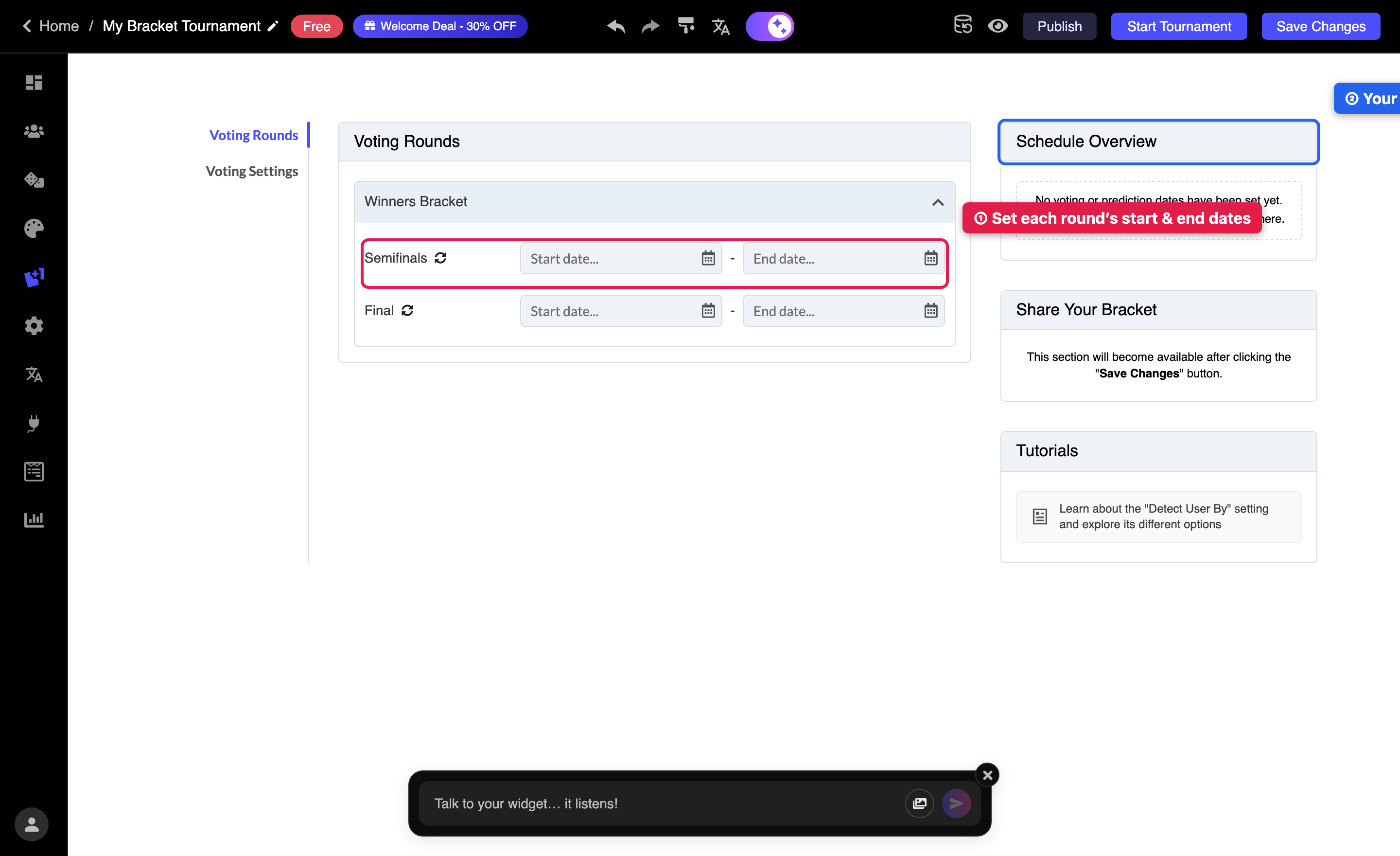
- Look at the right-hand sidebar under Schedule Overview — the calendar appears there automatically. Before any dates are set, it reads "No voting or prediction dates have been set yet."
- Use the arrows (and the Today button) above the calendar to move between months and review upcoming or past rounds.
How the ranges are set
The calendar reflects the dates you configure in the Votes settings — it doesn't create schedules on its own. To change what appears:
- Set Voting Starts At and Voting Ends At for each voting round (in the Voting Rounds sub-tab).
- For prediction brackets, set the prediction start and end dates.
- The calendar updates immediately to reflect any date change.
Tips
- Use it as a final check before publishing, to confirm no rounds overlap unintentionally.
- The Voting Calendar appears for voting and combined brackets.
Related: How to Change Date And Time Display Format of The Brackets?